
Search
Semantic search across your knowledge base
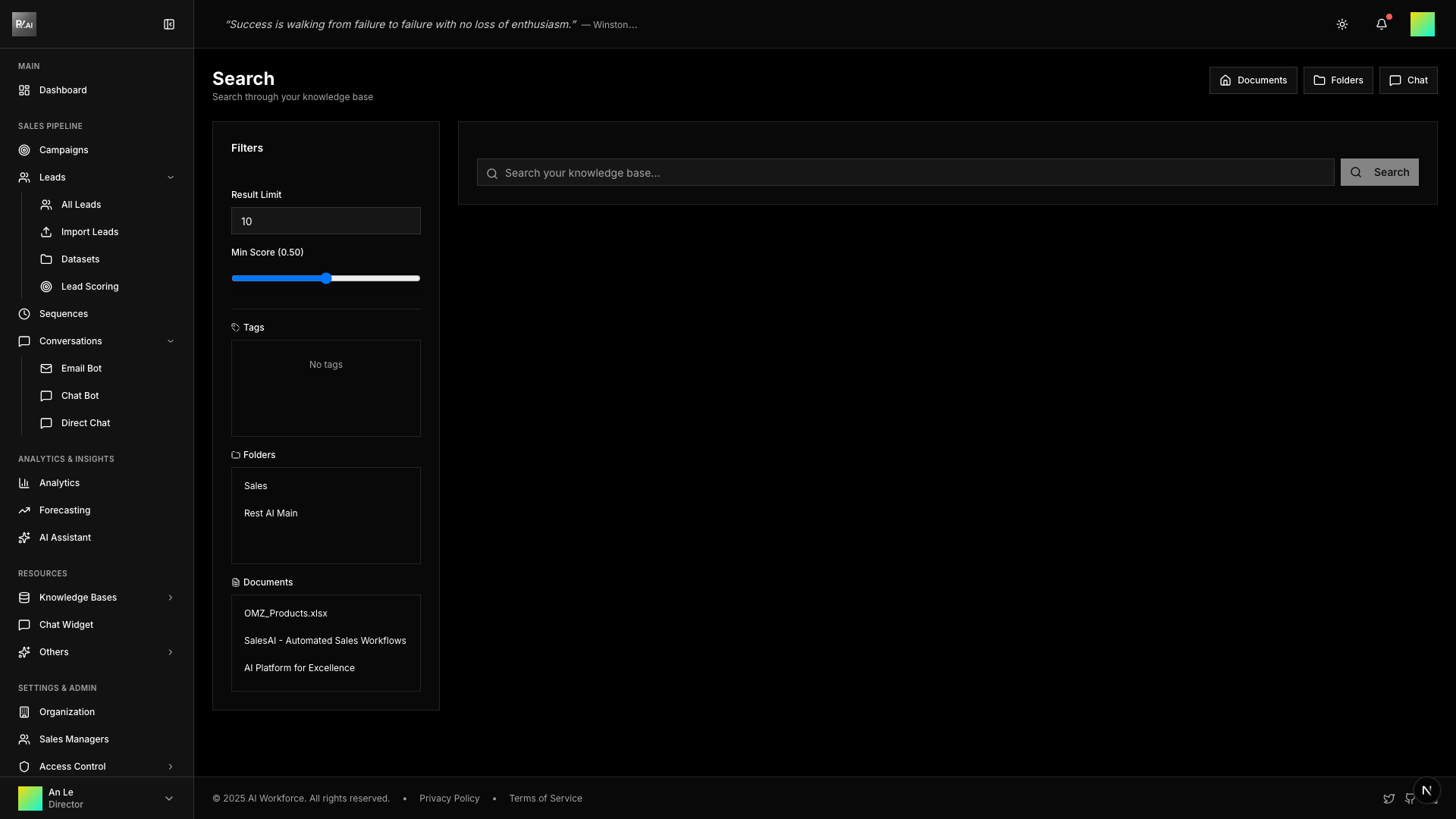
Search allows you to find relevant content across all your documents using semantic (meaning-based) search.
How It Works
Unlike keyword search, semantic search understands the meaning of your query. It finds relevant content even when exact words don't match.
| Search Type | Example Query | Finds |
|---|---|---|
| Keyword | "pricing" | Only documents containing "pricing" |
| Semantic | "how much does it cost" | Documents about pricing, costs, fees |
Using Search
- Go to Knowledge Bases > Search
- Enter your search query
- Optionally apply filters
- Click Search
- Review results ranked by relevance
Search Filters
Narrow results using filters:
- Tags - Limit to documents with specific tags
- Folders - Search within specific folders
- Documents - Search within specific files
- Min Score - Set minimum relevance threshold
- Limit - Maximum number of results
Understanding Results
Each result shows:
| Field | Description |
|---|---|
| Document | Source file name |
| Chunk | The relevant text segment |
| Score | Relevance percentage (0-100%) |
| Confidence | Overall search confidence |
Confidence Levels
- High - Strong match, highly relevant results
- Medium - Good match, results likely relevant
- Low - Weak match, results may be tangential
Search Settings
Result Limit
Control how many results to return (1-50). More results take longer but may find more relevant content.
Minimum Score
Set the relevance threshold (0.0-1.0):
- 0.5 (default) - Balanced results
- 0.7+ - Only highly relevant results
- 0.3- - Include loosely related results
Best Practices
- Be specific - "enterprise pricing for software" beats "pricing"
- Use natural language - Write queries as questions
- Check filters - Ensure you're searching the right scope
- Adjust threshold - Lower if too few results, raise if too many