
Importing Leads
How to import leads into AI Sales Service
Learn how to import leads using the 4-step import wizard. Choose from Excel files, documents, or AI-powered business search.
Import Methods
Choose the method that best fits your data source:
Import Wizard - 4 Steps
The import process follows a simple 4-step wizard:
Step 1: Choose Source
Select your import source: Excel/CSV, Document, or AI Search.
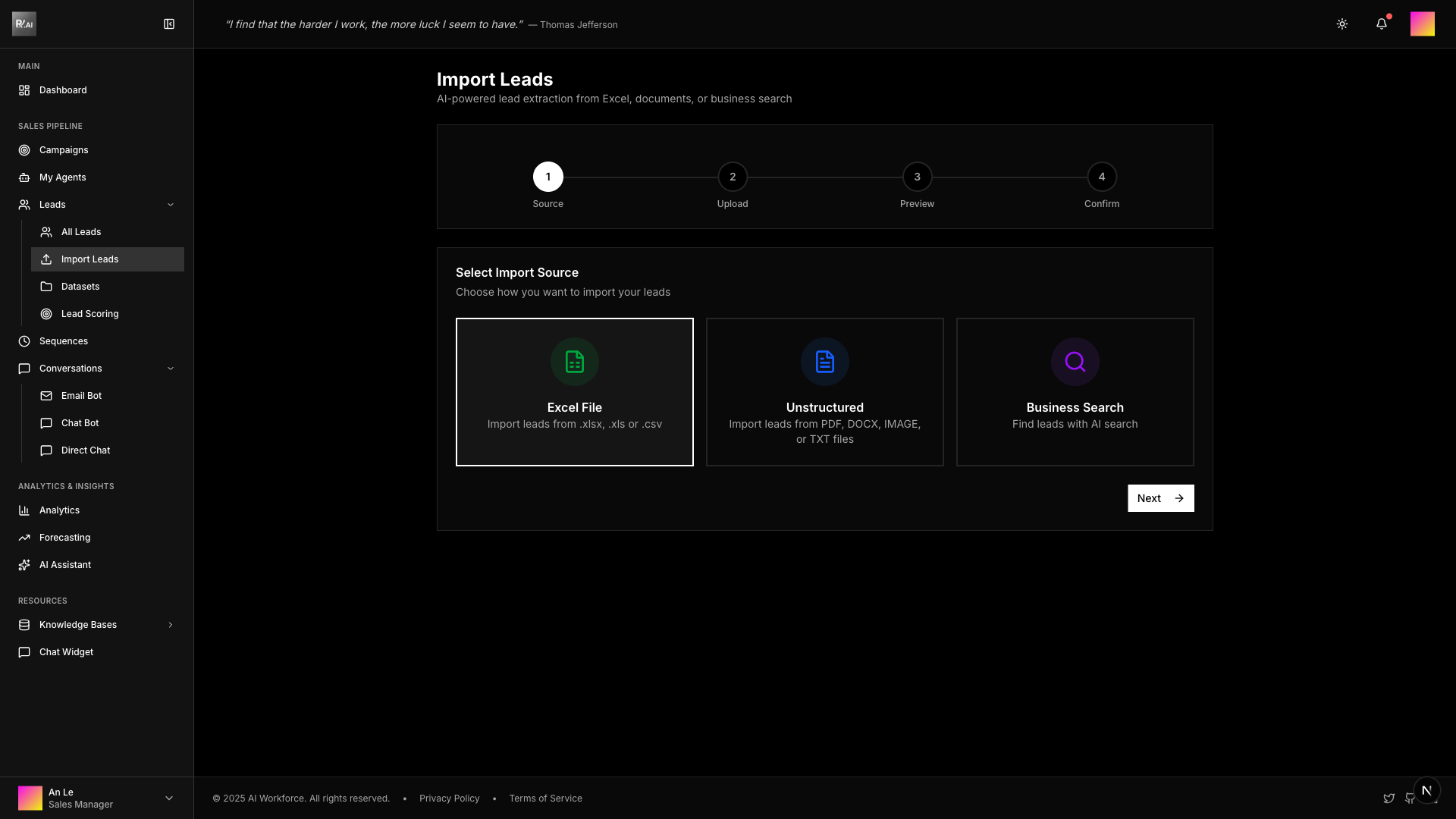
Step 2: Upload & Extract
Upload your file and click Upload & Extract to process the data.

The system will extract and preview the leads from your file.
Step 3: Map Fields
Review and map data fields to lead properties.
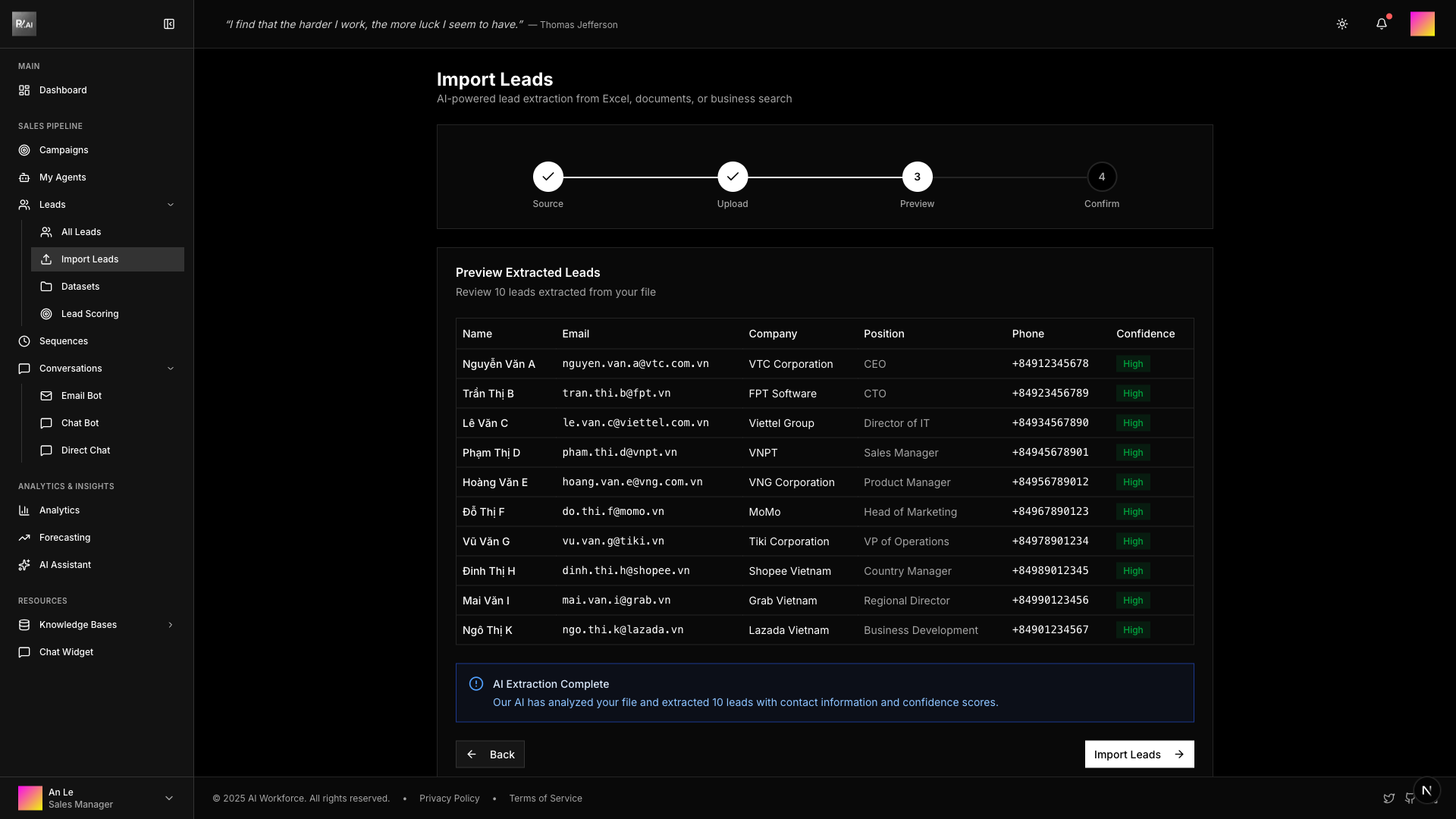
Step 4: Confirm
Review your import settings and click Import to complete the process.
📊 Structured Data Import (Excel/CSV)
Perfect for importing leads from spreadsheets with organized contact information.
How It Works
- Select Excel/CSV as your import source in Step 1
- Upload your CSV or Excel file in Step 2
- Map columns to lead fields in Step 3
- Review and confirm import in Step 4
Required Columns
| Column | Required | Description |
|---|---|---|
| Yes | Valid email address | |
| first_name | No | Lead's first name |
| last_name | No | Lead's last name |
| company | No | Company name |
Optional Columns
Enhance your lead data with additional fields:
phone- Phone numbertitle- Job titleindustry- Industry categorywebsite- Company websitelinkedin- LinkedIn profile URLnotes- Additional information
Best Practices
- Ensure email column contains valid addresses
- Use UTF-8 encoding for international characters
- Keep column headers simple and consistent
- Remove duplicate rows before importing
- Test with a small sample first
📄 Unstructured Data Import (Documents)
Extract leads from PDF, Word documents, or plain text files using AI-powered extraction.
How It Works
- Select Document as your import source in Step 1
- Upload your PDF, Word, or text file in Step 2
- AI automatically extracts contact information
- Review extracted data and map fields in Step 3
- Confirm import in Step 4
What AI Extracts
The AI engine automatically identifies and extracts:
- ✓ Email addresses
- ✓ Full names (first and last)
- ✓ Company names
- ✓ Job titles
- ✓ Phone numbers (when available)
- ✓ Addresses (when available)
Supported Formats
- PDF documents (.pdf)
- Microsoft Word (.docx, .doc)
- Plain text files (.txt)
- Markdown files (.md)
Best Practices
- Use documents with clear formatting
- Ensure text is not in images (OCR not supported yet)
- Break large documents into smaller files
- Review AI extractions before confirming
- Manually correct any extraction errors
🧠 AI-Powered Import (Business Search)
Discover and import leads directly from the web using AI agents that search and extract business information.
How It Works
- Select AI Search as your import source in Step 1
- Choose between Simple or Advanced search mode
- Describe your target businesses and criteria
- AI agents search the web and extract contact information
- Review discovered leads in Step 3
- Confirm import in Step 4
Simple Search Mode
Quick keyword-based search for straightforward lead discovery.
How to use:
- Enter a basic query about your target companies
- Click submit or press Enter
- Wait 30-60 seconds for results
Example query:
công ty phần mềm ở Hà Nội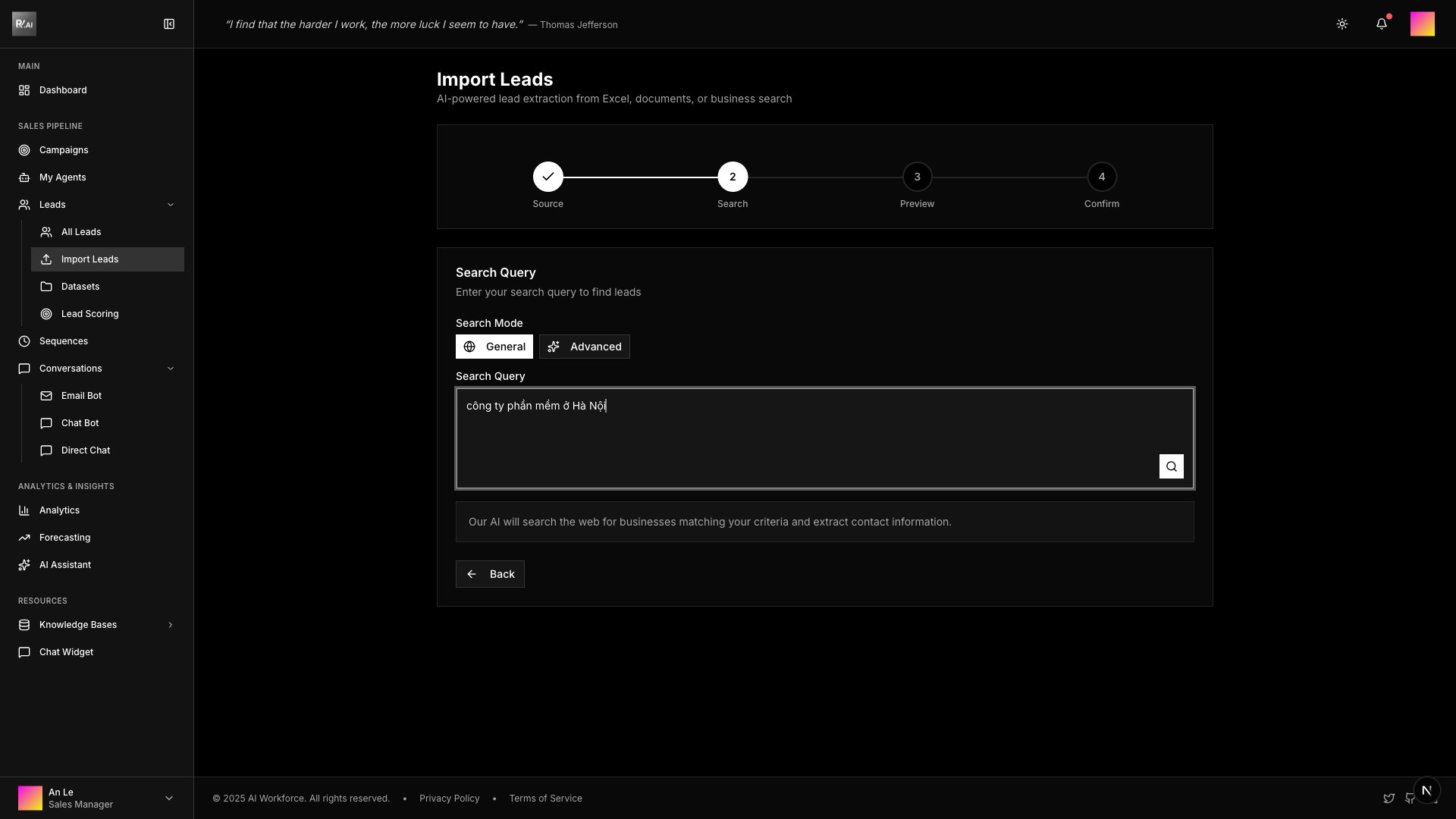
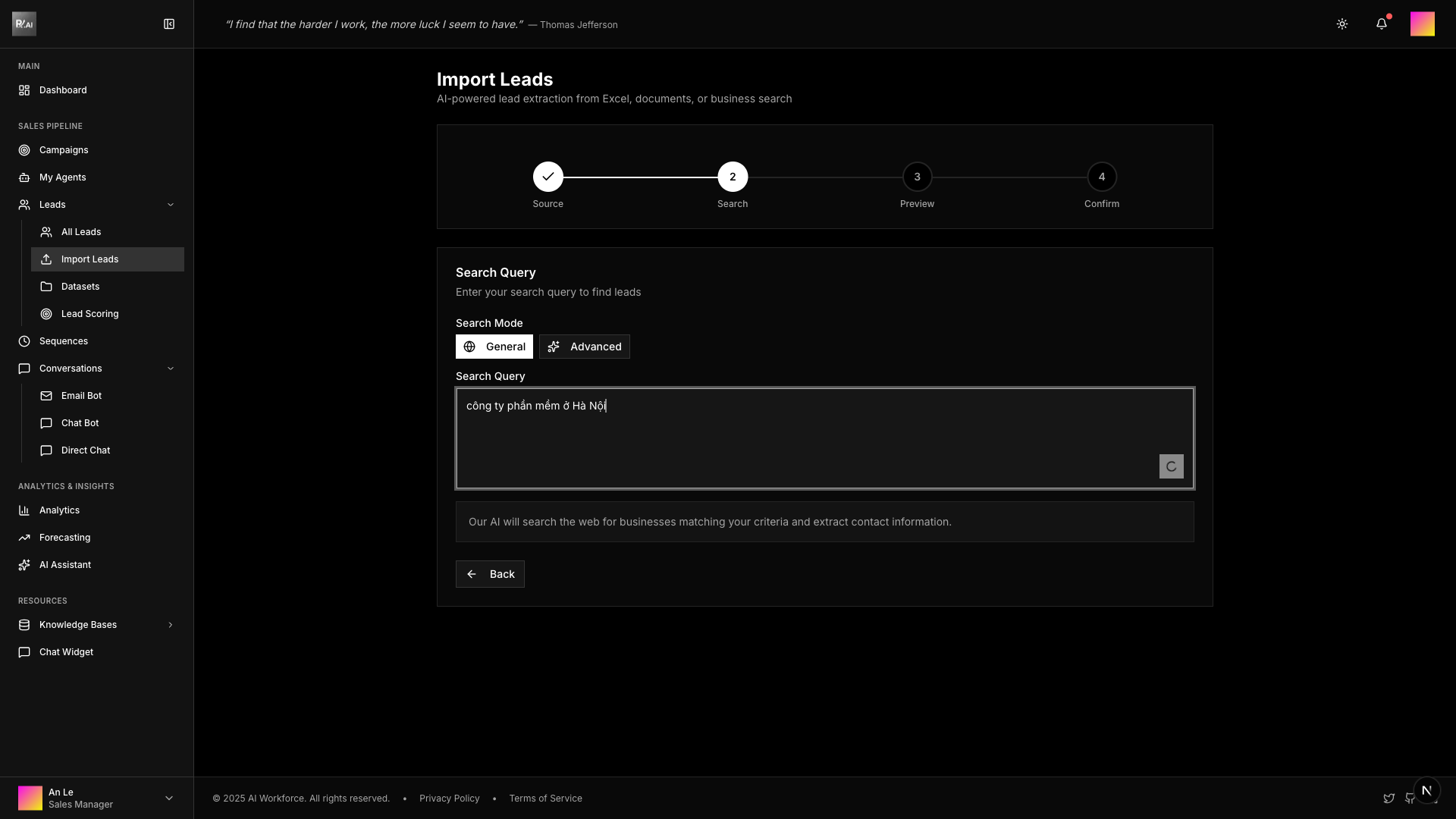
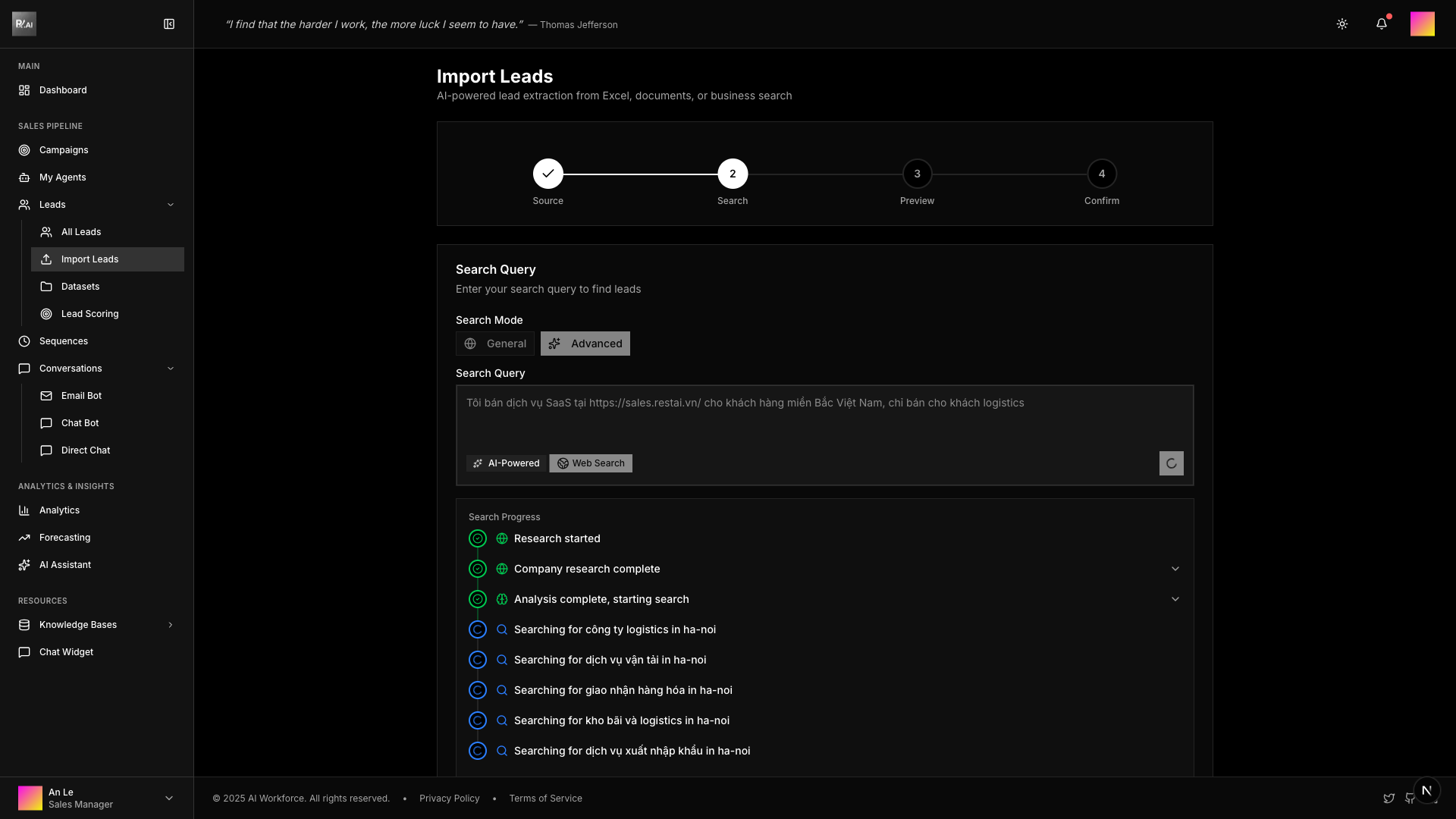
The AI will process your query and show progress:
Advanced Search Mode
AI-powered analysis with detailed business context and reasoning.
How to use:
- Click Advanced mode
- Enable Web Search for broader coverage
- Provide detailed context about your business and target customers
- Click submit or press Enter
- Wait 60-120 seconds for comprehensive results
Example query:
Tôi bán dịch vụ SaaS tại https://sales.restai.vn/
cho khách hàng miền Bắc Việt Nam,
chỉ bán cho khách logistics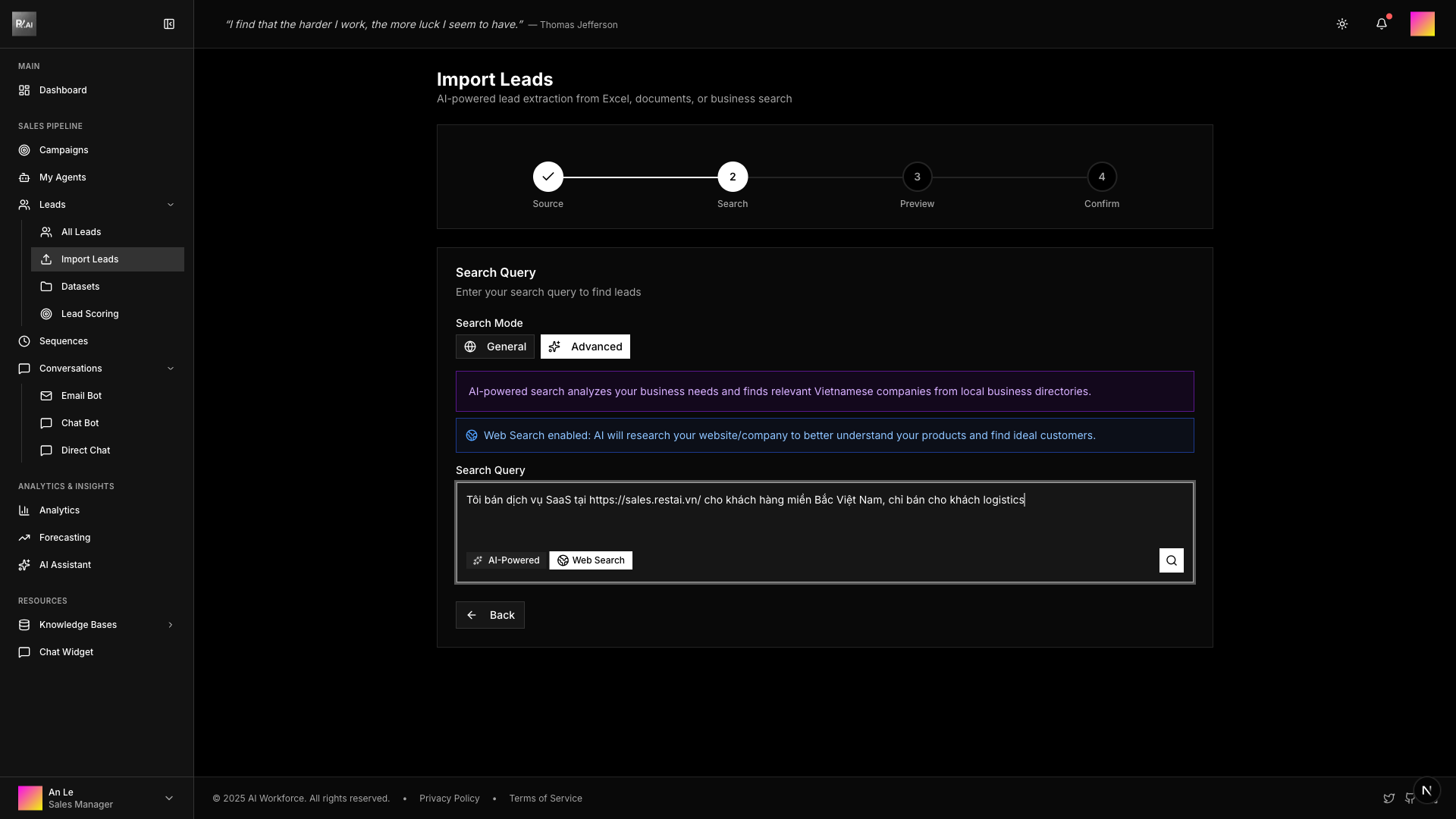
The AI shows reasoning, tool usage, and progress in real-time:
What AI Does Automatically
- 🔍 Analyzes your business and value proposition
- 🌐 Searches relevant sources on the internet
- 📇 Extracts contact information (email, phone, website)
- 🎯 Matches companies to your target criteria
- 📊 Scores leads based on relevance
- 🏢 Identifies decision makers when possible
When to Use Each Mode
| Feature | Simple Mode | Advanced Mode |
|---|---|---|
| Setup time | < 1 minute | 2-3 minutes |
| Query complexity | Keywords only | Full context |
| Web search | Limited | Enabled |
| AI reasoning | Hidden | Visible |
| Processing time | 30-60 seconds | 60-120 seconds |
| Results quality | Good | Excellent |
| Best for | Quick tests | Production use |
Tips for Better Results
- Be specific: Include location, industry, and company size
- Provide context: Describe your product/service and target customer
- Include your website: Helps AI understand your value proposition
- Use Advanced mode: For better quality and more relevant leads
- Enable Web Search: Increases coverage and accuracy
- Review carefully: AI extractions may need validation
- Iterate: Refine your query based on initial results
Handling Duplicates
The system detects duplicates by email address. Choose how to handle:
- Skip - Ignore duplicates
- Update - Merge new data with existing
- Replace - Overwrite existing lead
Best Practices
- Clean your data before importing
- Validate email addresses
- Use consistent formatting
- Import in batches for large lists
- Review AI extractions for accuracy
- For AI search, provide context about your target customers