
Campaign Actions
Test email generation, edit campaigns, and manage campaign states
Once a campaign is created, several actions are available from the campaign detail page.
Campaign Overview
The campaign detail page displays action buttons for managing your campaign.
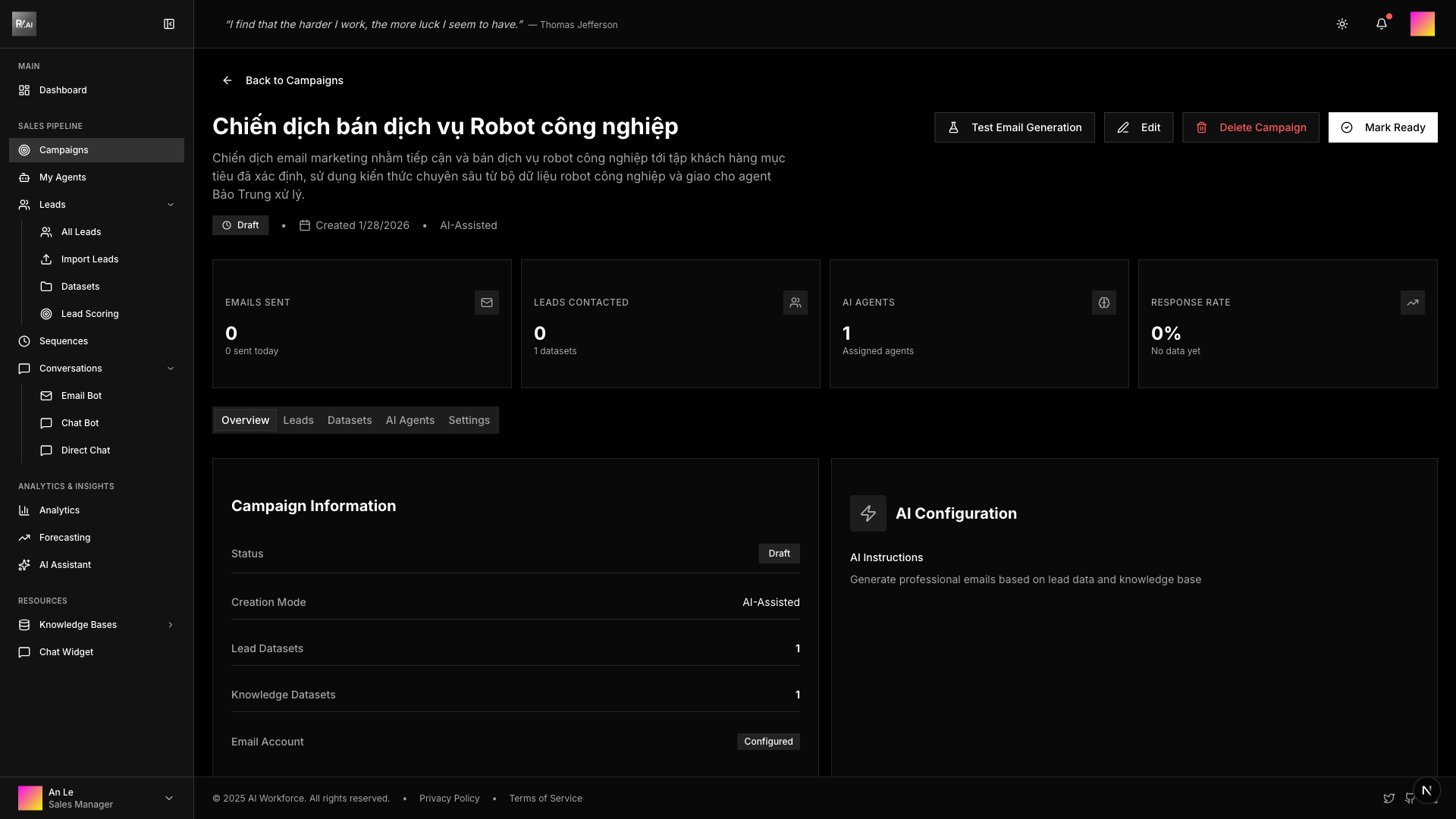
Available actions depend on campaign status:
- Test Email Generation - Generate sample emails to preview AI output
- Edit - Modify campaign settings (Draft status only)
- Delete - Remove the campaign
- Mark Ready / Start Campaign - Progress campaign through lifecycle
Test Email Generation
Test your AI's email output before sending to real leads.
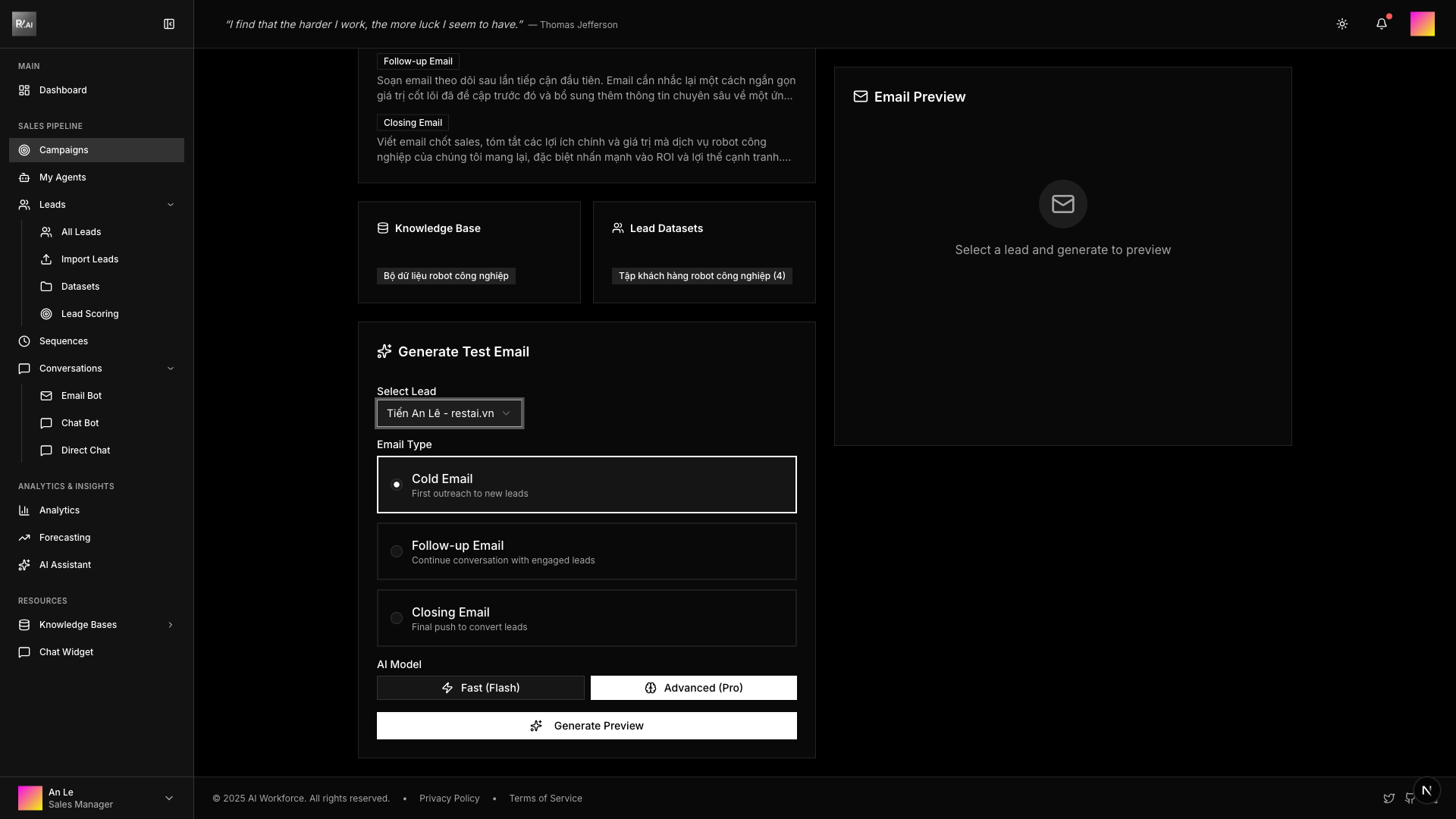
How to Test
- Click Test Email Generation button
- Select a lead from the dropdown
- Choose email type: Cold, Follow-up, or Closing
- Select optimization: Pro (faster) or Quality (better results)
- Click Generate to create a sample email
Configuration Options
| Option | Description |
|---|---|
| Lead | Select which lead profile to use for personalization |
| Email Type | Cold (first contact), Follow-up, or Closing |
| Optimize For | Speed (faster, good quality) or Quality (slower, best results) |
Generated Result
The AI generates a complete email with:
- Personalized subject line
- Email body with lead-specific content
- Professional formatting
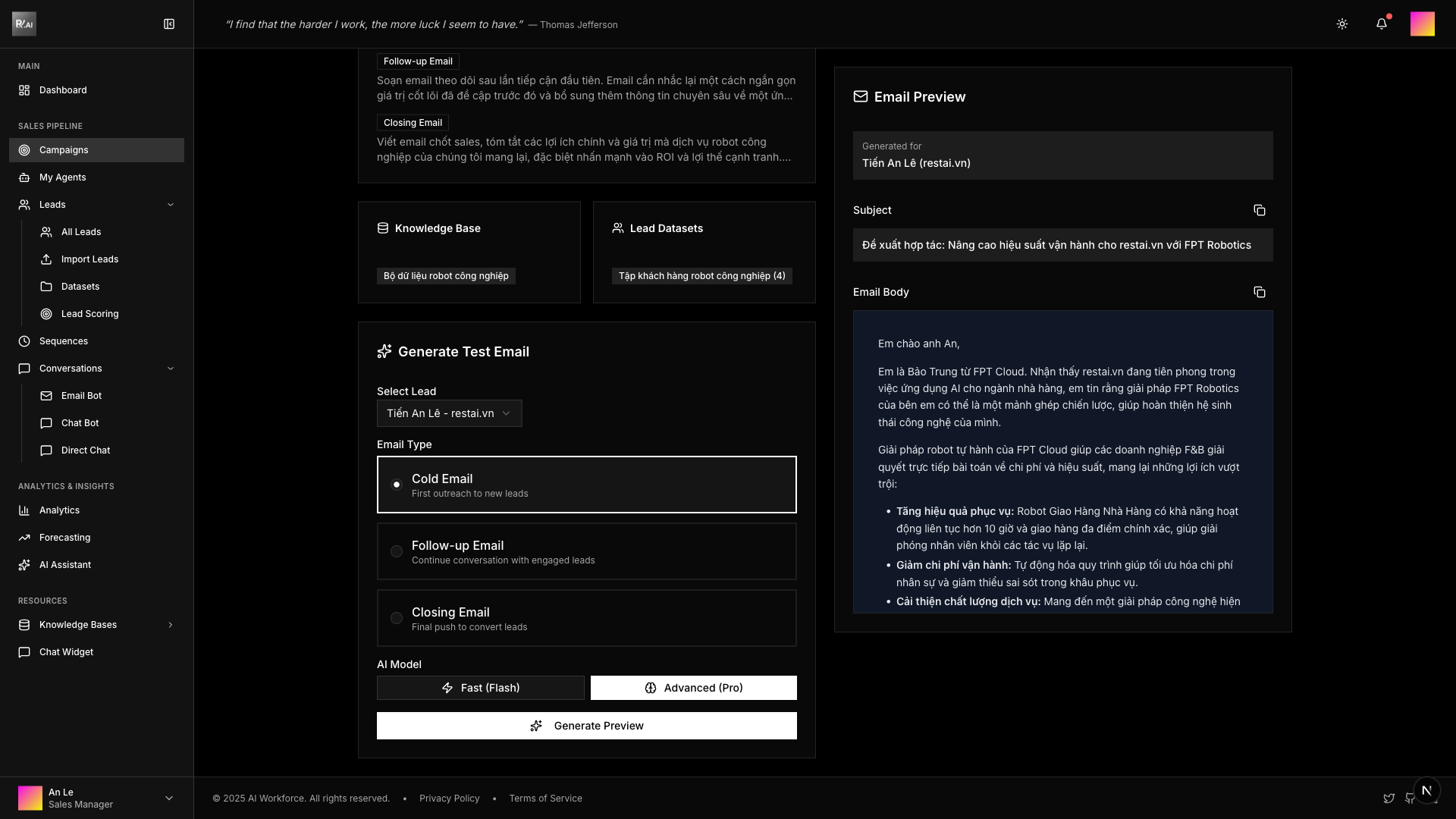
Test emails are not sent - they're only for preview purposes.
Editing Campaigns
Modify campaign settings from the edit page.
Only campaigns in Draft status can be edited. Once a campaign is marked Ready or Started, settings are locked.
Edit Page Sections
Navigate to Campaign Detail → Edit to access the edit form.
Status & Overview
Campaign status and linked resources overview.
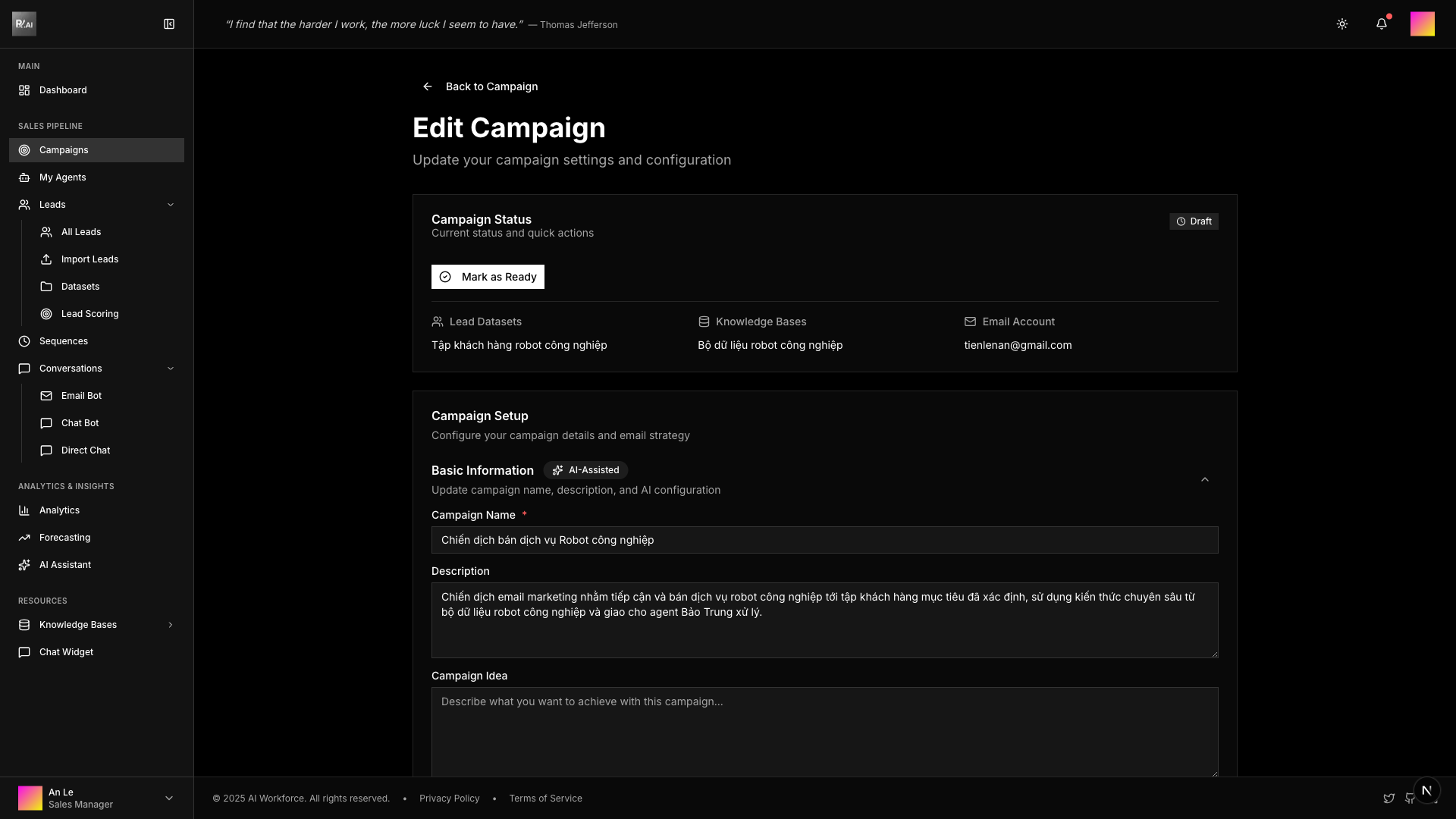
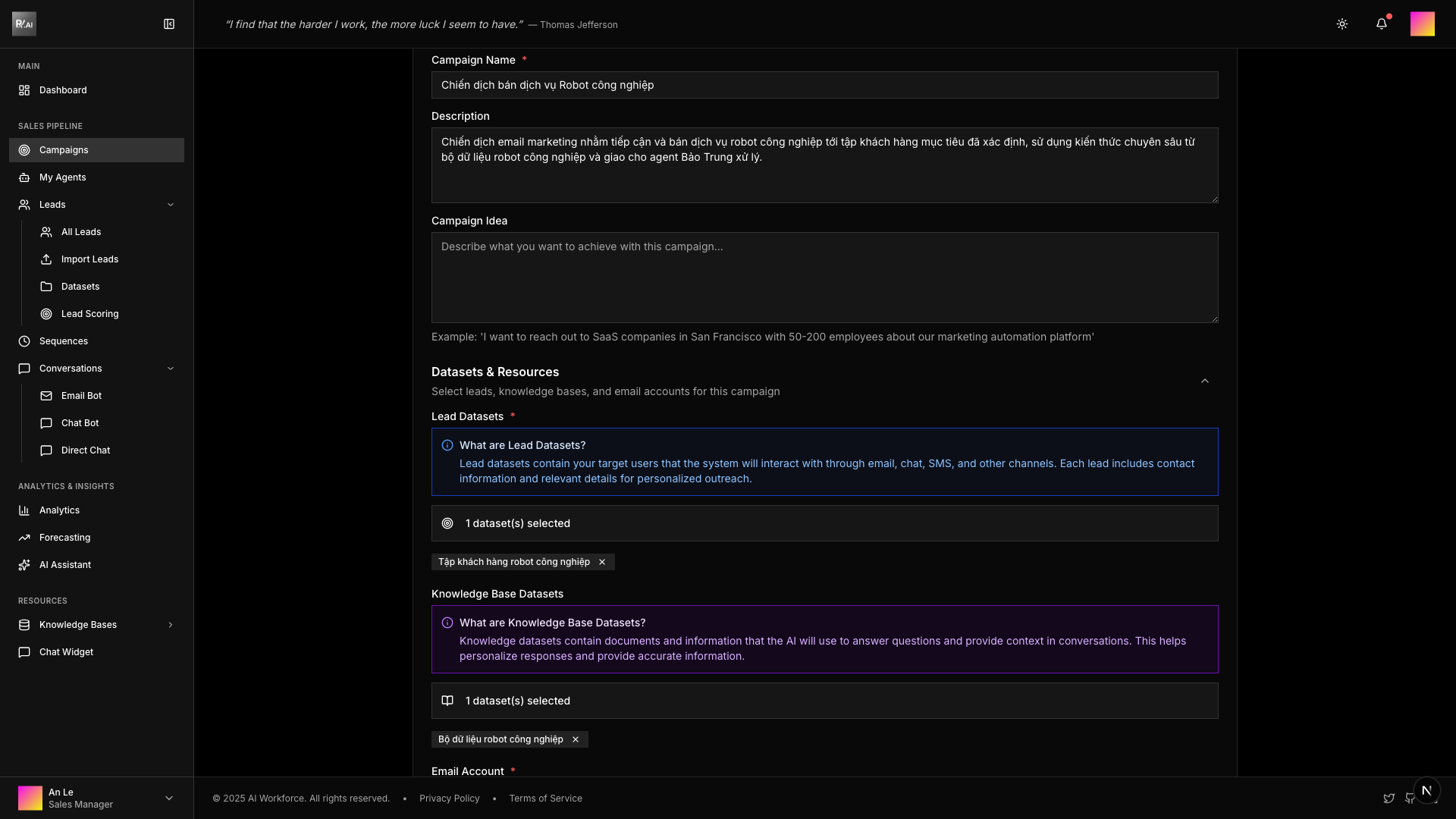
Basic Information
Campaign name, description, datasets, and email account settings.
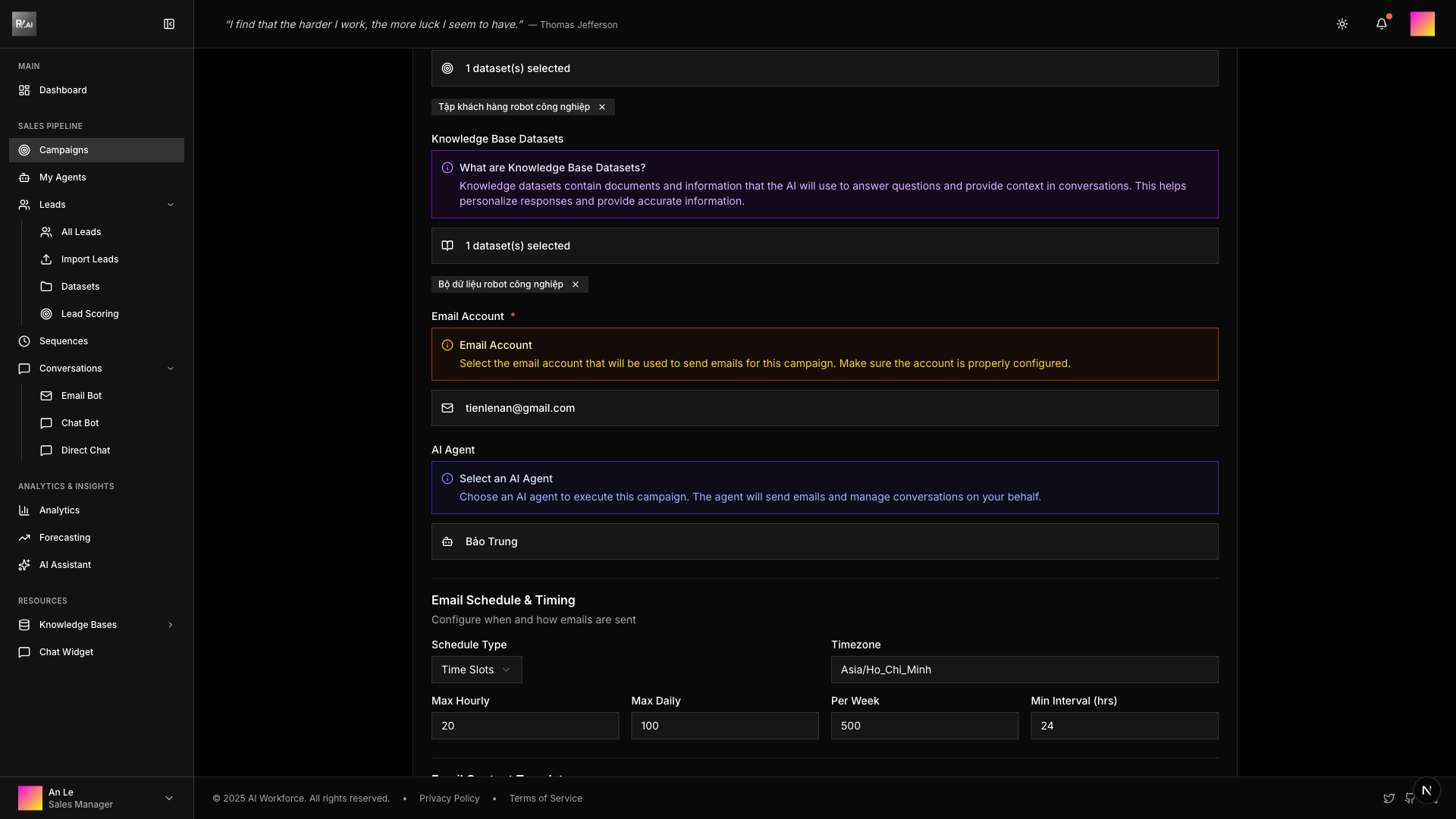
Resource Selection
Lead datasets, knowledge bases, email account, and AI agent assignment.
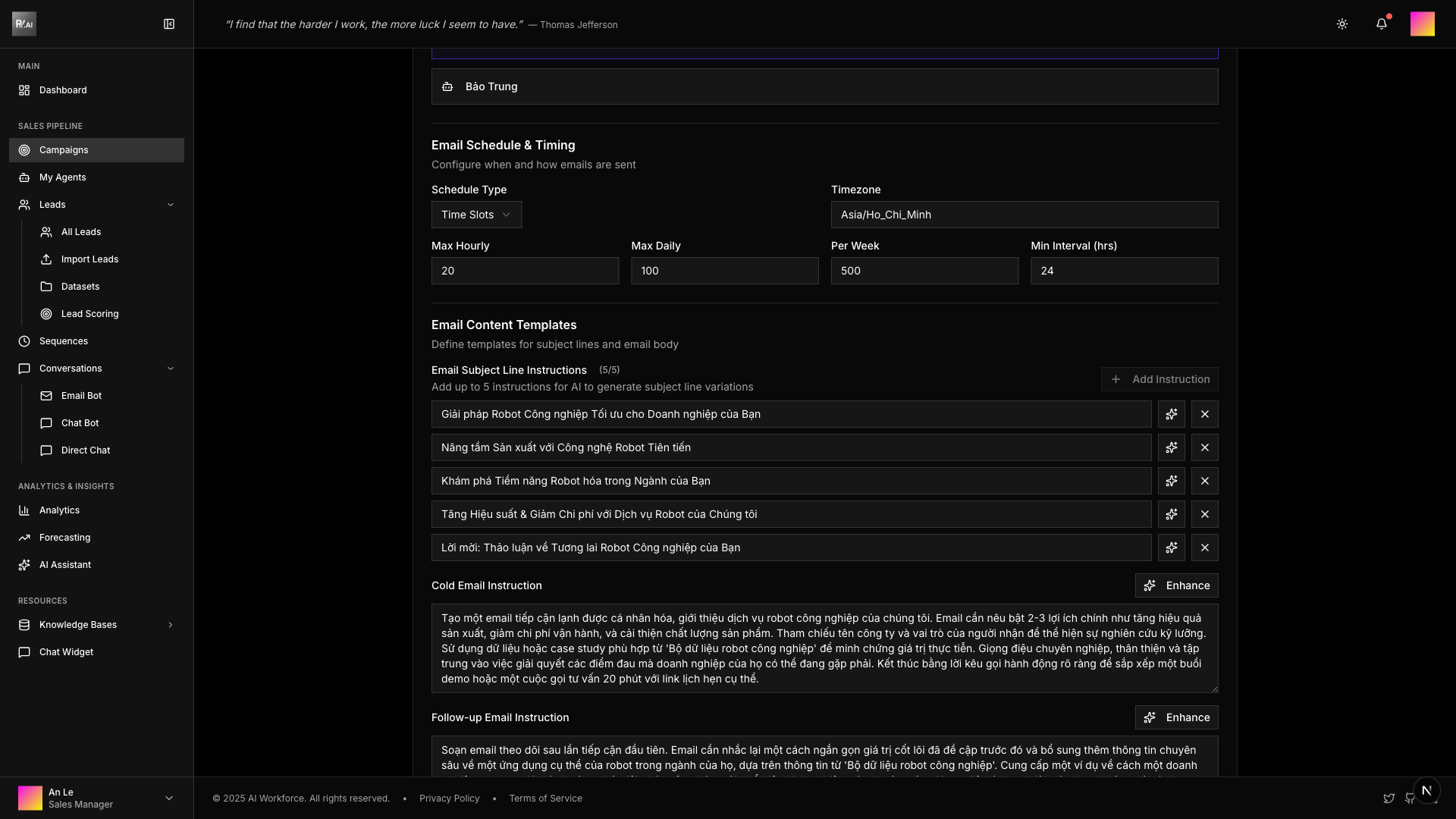
Schedule & Templates
Email schedule timing, subject lines, and email body templates.
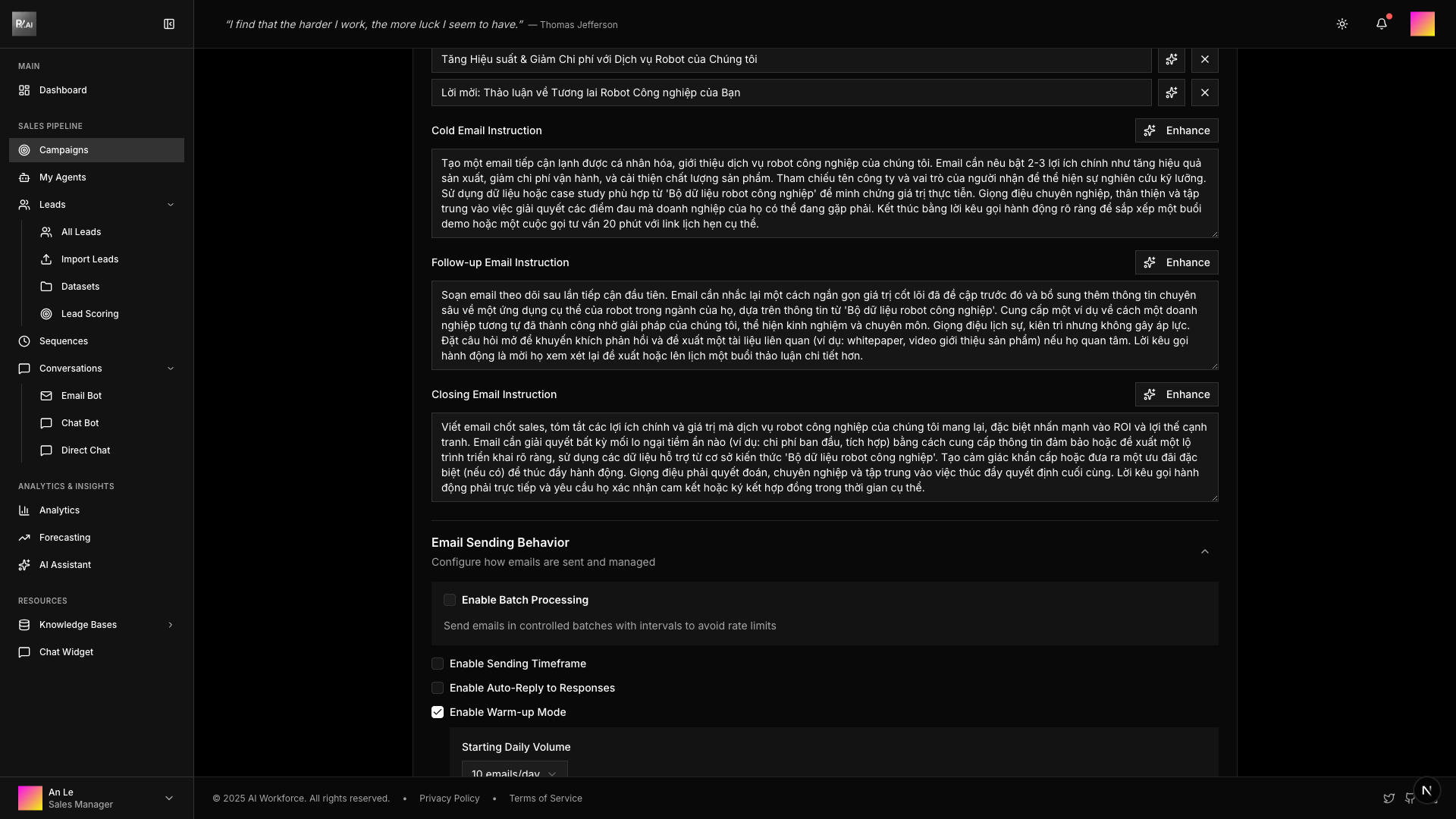
Sending Behavior
Batch processing, warm-up settings, follow-up configuration.
AI-Powered Improvements
Use the AI assistance features to improve your subject lines and instructions. Look for the sparkle icons next to editable fields.
Saving Changes
- Click Save to apply changes
- Changes take effect immediately for draft campaigns
- Review all sections before saving
Related Guides
- Campaign Status - Understanding campaign lifecycle
- Creating Campaigns - Campaign creation guide